> ## Documentation Index
> Fetch the complete documentation index at: https://www.greptile.com/docs/llms.txt
> Use this file to discover all available pages before exploring further.
# Review pull requests
> Use Tour, Full diff, Chat with PR, and keyboard shortcuts to review pull requests in Greptile.
Open a pull request in the [Greptile dashboard](https://app.greptile.com). Choose a guided walkthrough or browse the changes by file. Use **Chat with PR** to ask questions as you review.
## Choose a review view
Open the **Code** tab. When **Tour** is available, switch between **Tour** and **Full diff** above the code view. If there is no Tour, use **Full diff**.
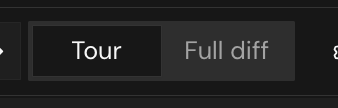 *Switch between Tour and Full diff above the code view.*
### Tour
Use **Tour** to understand the changes step by step. Each step groups related changes and explains the code beside it.
Press **Left** or **Right** to move between steps.
### Full diff
Use **Full diff** to inspect a specific file or review the changes in file order. Choose a file in the tree to view its diff.
## Chat with PR
Click **Chat with PR** in the pull request header, or press **Shift+C**. Type a question about the PR in the chat box.
*Switch between Tour and Full diff above the code view.*
### Tour
Use **Tour** to understand the changes step by step. Each step groups related changes and explains the code beside it.
Press **Left** or **Right** to move between steps.
### Full diff
Use **Full diff** to inspect a specific file or review the changes in file order. Choose a file in the tree to view its diff.
## Chat with PR
Click **Chat with PR** in the pull request header, or press **Shift+C**. Type a question about the PR in the chat box.
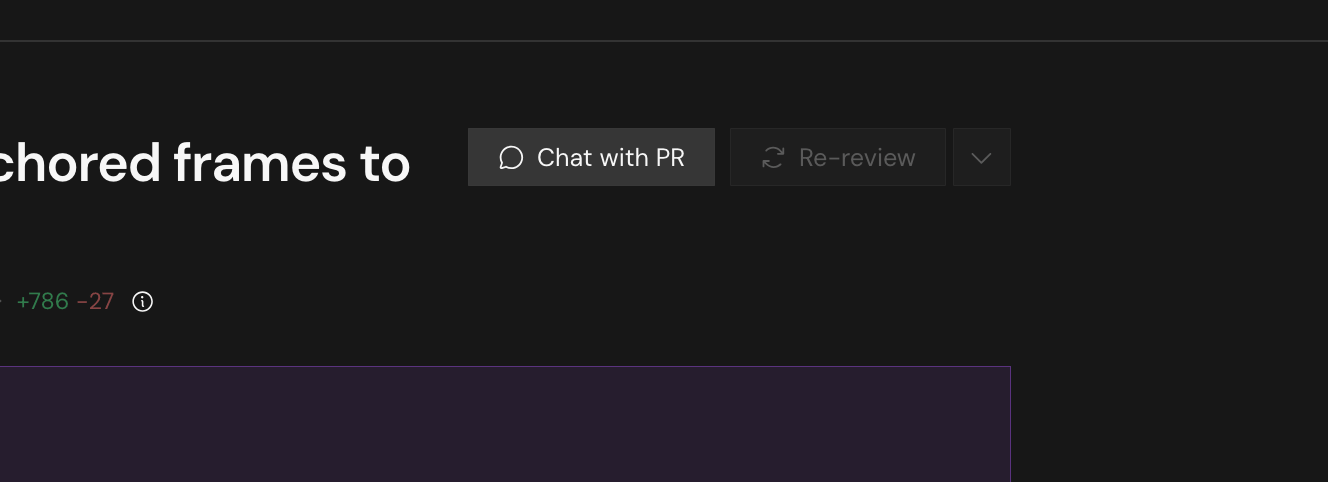 *Open Chat with PR from the pull request header.*
### Choose context for your question
Give chat the code or explanation you want to discuss:
1. Click **Select context** in the chat box. To use **Shift+S**, move focus out of the question box first.
2. Click a review explanation or file header to add it. To select code, drag across the lines. A blue outline marks your selections.
3. Type your question and send it.
Sending your question ends selection mode. You can also leave it with **Done** or **Escape**.
Check the answer against the code before acting on it.
*Open Chat with PR from the pull request header.*
### Choose context for your question
Give chat the code or explanation you want to discuss:
1. Click **Select context** in the chat box. To use **Shift+S**, move focus out of the question box first.
2. Click a review explanation or file header to add it. To select code, drag across the lines. A blue outline marks your selections.
3. Type your question and send it.
Sending your question ends selection mode. You can also leave it with **Done** or **Escape**.
Check the answer against the code before acting on it.
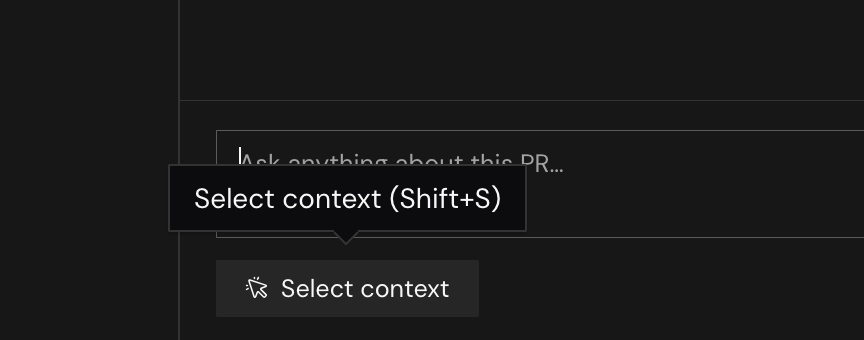 *Select context adds code or review content to your question.*
### Questions to try
* What does this PR change?
* Explain the changes in this context.
* What edge cases should I test for this change?
## Keyboard shortcuts
Click the keyboard icon in the top bar to open **Keyboard Shortcuts**. Shortcuts depend on the current view and focus. The chat shortcuts do not run while the question box is focused.
*Select context adds code or review content to your question.*
### Questions to try
* What does this PR change?
* Explain the changes in this context.
* What edge cases should I test for this change?
## Keyboard shortcuts
Click the keyboard icon in the top bar to open **Keyboard Shortcuts**. Shortcuts depend on the current view and focus. The chat shortcuts do not run while the question box is focused.
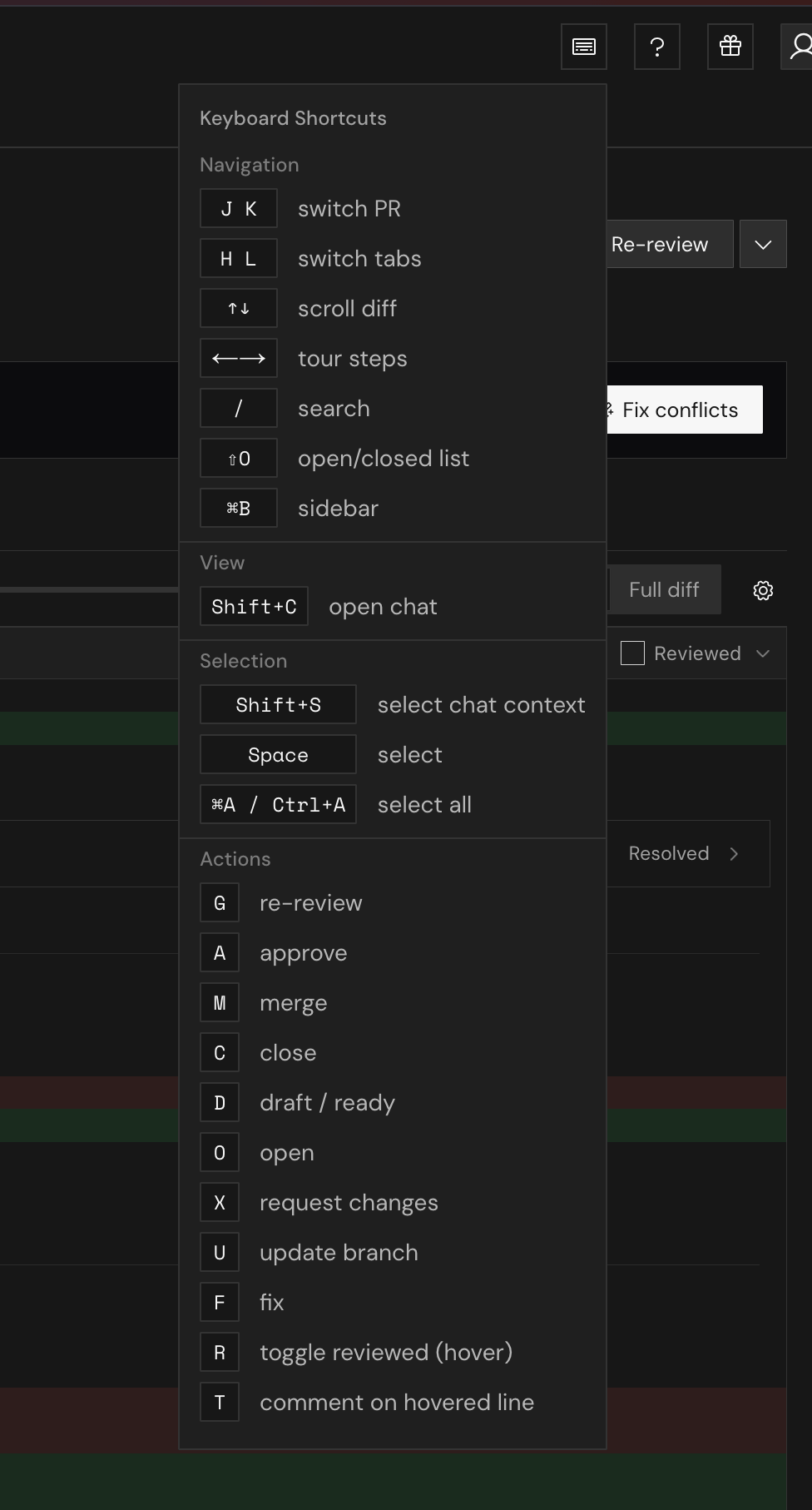 *The Keyboard Shortcuts menu groups navigation, view, selection, and review actions.*
### Navigation and chat
| Shortcut | Action |
| - | - |
| J / K | Next / previous PR |
| H / L | Previous / next tab |
| Up / Down | Scroll diff |
| Left / Right | Previous / next Tour step |
| / | Search |
| Shift+O | Switch Open/Closed list |
| Command+B / Ctrl+B | Toggle sidebar |
| Shift+C | Open chat |
| Shift+S | Select chat context |
### Selection
These shortcuts select PRs in the list, separate from the code you select for chat.
| Shortcut | Action |
| - | - |
| Space | Select or deselect the focused PR |
| Command+A / Ctrl+A | Select or deselect all visible PRs |
### Review actions
Actions depend on the PR state and your permissions.
When PRs are selected in the list, **G**, **A**, **M**, **C**, **O**, **X**, **U**, and **F** act on those PRs instead of the open PR. Clear the selection before using these keys on the open PR.
**D** does not change draft status while PRs are selected.
| Shortcut | Action |
| - | - |
| G | Re-review |
| A | Approve |
| M | Merge |
| C | Close |
| D | Draft / ready |
| O | Reopen PR |
| X | Request changes |
| U | Update branch |
| F | Fix |
| R | Toggle reviewed (hover) |
| T | Comment on hovered line |
This documentation is built and hosted on [Mintlify](https://mintlify.com), a developer documentation platform.
*The Keyboard Shortcuts menu groups navigation, view, selection, and review actions.*
### Navigation and chat
| Shortcut | Action |
| - | - |
| J / K | Next / previous PR |
| H / L | Previous / next tab |
| Up / Down | Scroll diff |
| Left / Right | Previous / next Tour step |
| / | Search |
| Shift+O | Switch Open/Closed list |
| Command+B / Ctrl+B | Toggle sidebar |
| Shift+C | Open chat |
| Shift+S | Select chat context |
### Selection
These shortcuts select PRs in the list, separate from the code you select for chat.
| Shortcut | Action |
| - | - |
| Space | Select or deselect the focused PR |
| Command+A / Ctrl+A | Select or deselect all visible PRs |
### Review actions
Actions depend on the PR state and your permissions.
When PRs are selected in the list, **G**, **A**, **M**, **C**, **O**, **X**, **U**, and **F** act on those PRs instead of the open PR. Clear the selection before using these keys on the open PR.
**D** does not change draft status while PRs are selected.
| Shortcut | Action |
| - | - |
| G | Re-review |
| A | Approve |
| M | Merge |
| C | Close |
| D | Draft / ready |
| O | Reopen PR |
| X | Request changes |
| U | Update branch |
| F | Fix |
| R | Toggle reviewed (hover) |
| T | Comment on hovered line |
This documentation is built and hosted on [Mintlify](https://mintlify.com), a developer documentation platform.