> ## Documentation Index
> Fetch the complete documentation index at: https://www.greptile.com/docs/llms.txt
> Use this file to discover all available pages before exploring further.
# Jira Integration
> Connect Jira so Greptile reads the tickets behind your pull requests, reviews against them, and links to them in its comments.
Connect Jira and Greptile reads the tickets behind your pull requests. When it reviews a PR it finds the tickets that PR is about, uses them as context, and links back to every ticket it read.
Available to all organizations. One admin connects it once for the whole organization.
## What Greptile does with your tickets
* **Finds the ticket** - Greptile picks up issue keys and links from the PR title, description, and branch name. It can also search Jira for related work while reviewing
* **Reviews against it** - the ticket's description and acceptance criteria become review context, so Greptile can point out where the change doesn't do what was asked
* **Answers follow-ups** - ask about a ticket in a reply to a Greptile comment and it looks the ticket up
* **Shows its sources** - every ticket Greptile read is linked in the review
## Connect Jira
Connecting requires admin access to your Greptile organization.
On the [Greptile dashboard](https://app.greptile.com), go to **Settings → Connections → Integrations**.
Click **Add new data source** and select **Atlassian**.
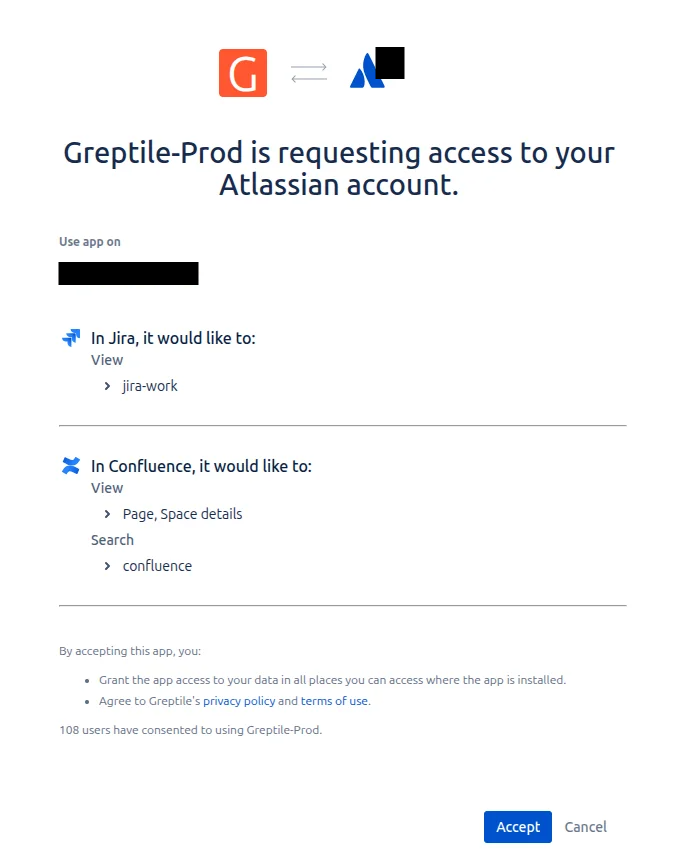
Atlassian asks you to grant Greptile read access. Pick the site to use it on and click **Accept**.
 Atlassian shows up in your connected data sources. Greptile uses Jira context on the next review.
Greptile reads Jira today. The connection already covers Confluence, so when Greptile starts reading Confluence pages you won't have to reconnect.
## Where the tickets show up
A comment that relies on a ticket ends with a **Source Used** line linking to it, and the review summary lists everything Greptile read under **Context used**. Greptile only cites tickets it actually opened. Jira tickets are labeled **Atlassian** — the name of the connection they come from.
When Greptile finds a ticket you didn't link, it says so in the comment rather than presenting it as one you referenced.
## What Greptile can read
* Read-only. Greptile never writes to Jira.
* Anything the Atlassian account that authorized the connection can see, in every repository in your organization.
* One Atlassian site. If that account has access to several sites, Greptile reads the site it connected to — contact [support@greptile.com](mailto:support@greptile.com) if it isn't the one you want.
## Managing the connection
Any member of your organization can see connected data sources under **Settings → Connections → Integrations**; admins can add and remove them. To turn the integration off, click the disconnect icon on the Atlassian row and confirm. Greptile deletes the stored credentials and reviews continue without ticket context.
Reviews not picking up tickets? See [Common issues](/docs/troubleshooting/common-issues).
Atlassian shows up in your connected data sources. Greptile uses Jira context on the next review.
Greptile reads Jira today. The connection already covers Confluence, so when Greptile starts reading Confluence pages you won't have to reconnect.
## Where the tickets show up
A comment that relies on a ticket ends with a **Source Used** line linking to it, and the review summary lists everything Greptile read under **Context used**. Greptile only cites tickets it actually opened. Jira tickets are labeled **Atlassian** — the name of the connection they come from.
When Greptile finds a ticket you didn't link, it says so in the comment rather than presenting it as one you referenced.
## What Greptile can read
* Read-only. Greptile never writes to Jira.
* Anything the Atlassian account that authorized the connection can see, in every repository in your organization.
* One Atlassian site. If that account has access to several sites, Greptile reads the site it connected to — contact [support@greptile.com](mailto:support@greptile.com) if it isn't the one you want.
## Managing the connection
Any member of your organization can see connected data sources under **Settings → Connections → Integrations**; admins can add and remove them. To turn the integration off, click the disconnect icon on the Atlassian row and confirm. Greptile deletes the stored credentials and reviews continue without ticket context.
Reviews not picking up tickets? See [Common issues](/docs/troubleshooting/common-issues).