
- Create custom rules that catch team-specific issues
- Upload existing style guides for automatic enforcement
- Configure repository-specific standards via
.greptile/orgreptile.json - Use per-directory rules in monorepos
- Verify rules are actually being applied
- Debug when rules don’t work as expected
Required Permissions
Understand who can configure custom standards:Dashboard rule permissions depend on where you are in the app. At organization scope, only an organization admin can create or edit rules. Inside a team, an organization admin or team admin for that team can. If buttons are disabled, ask an organization admin to promote you—or, for team-scoped rules only, to grant you team admin on that team.
Configuration Methods
Method 1: Dashboard
The quickest way to add custom rules. Changes apply within 2-3 minutes to new PRs.1
Navigate to Custom Rules
Go to Memory → Custom rules. Available at both the organization and team level.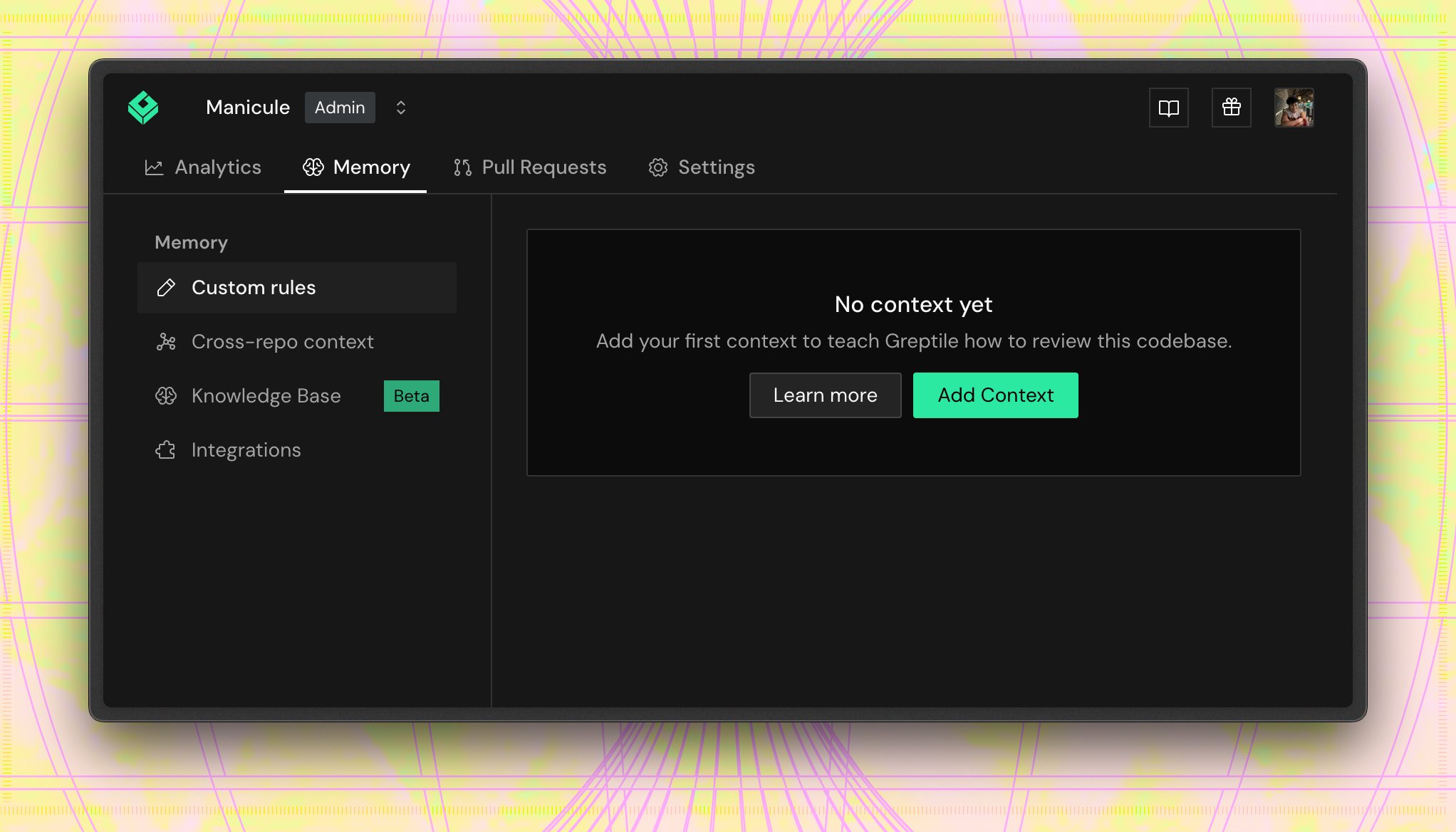
2
Create Rules
Click Add Context and choose the Rule context type. Rules must be specific and measurable: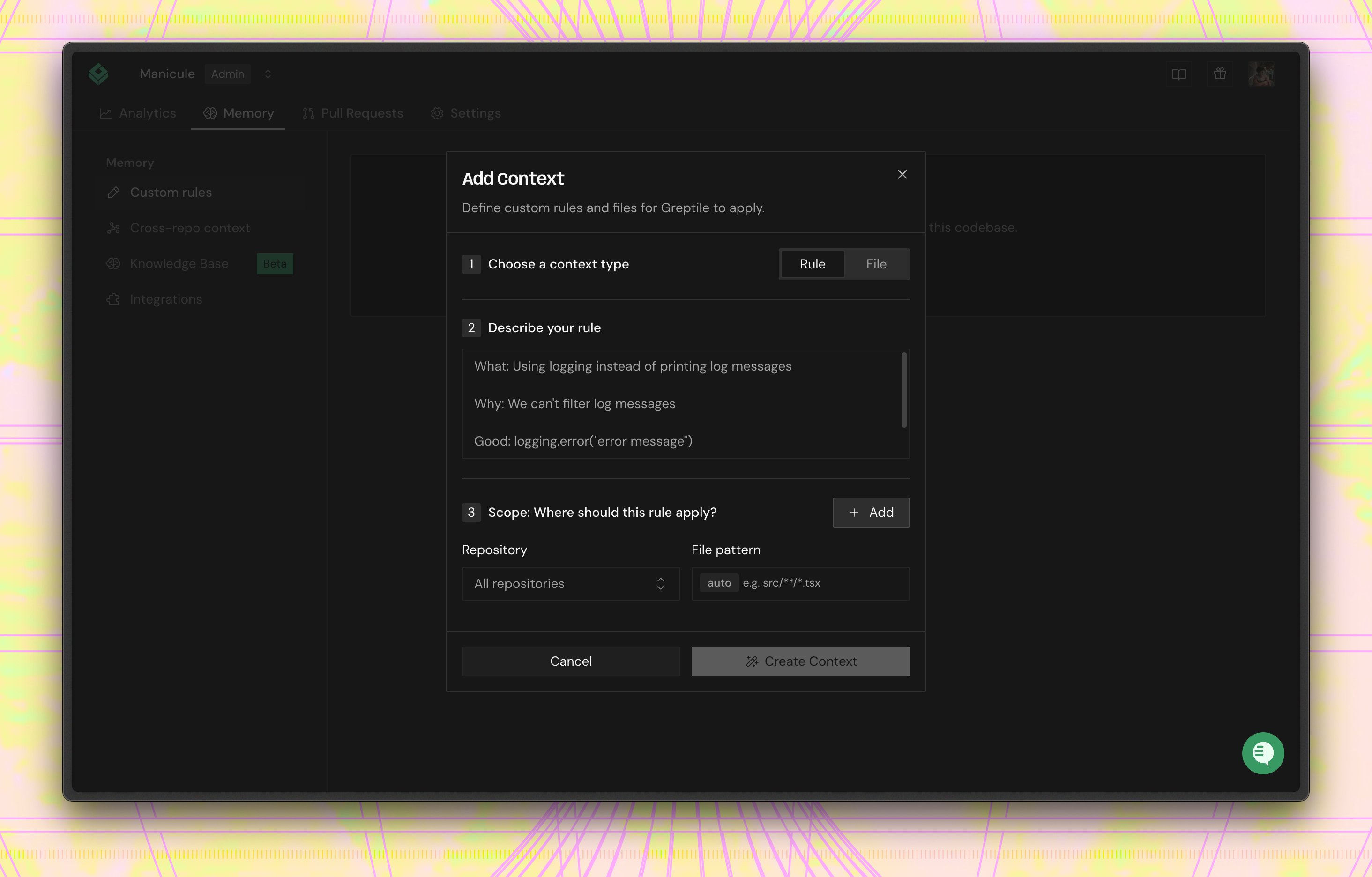
- ❌ “Write clean code”
- ✅ “Functions must not exceed 50 lines”
- ✅ “All API responses must include
statusandtimestampfields”
3
Define Scope
Use glob patterns to target specific files:
4
Upload Style Guides (Optional)
In Add Context, choose the File context type and point to existing documentation in your repository: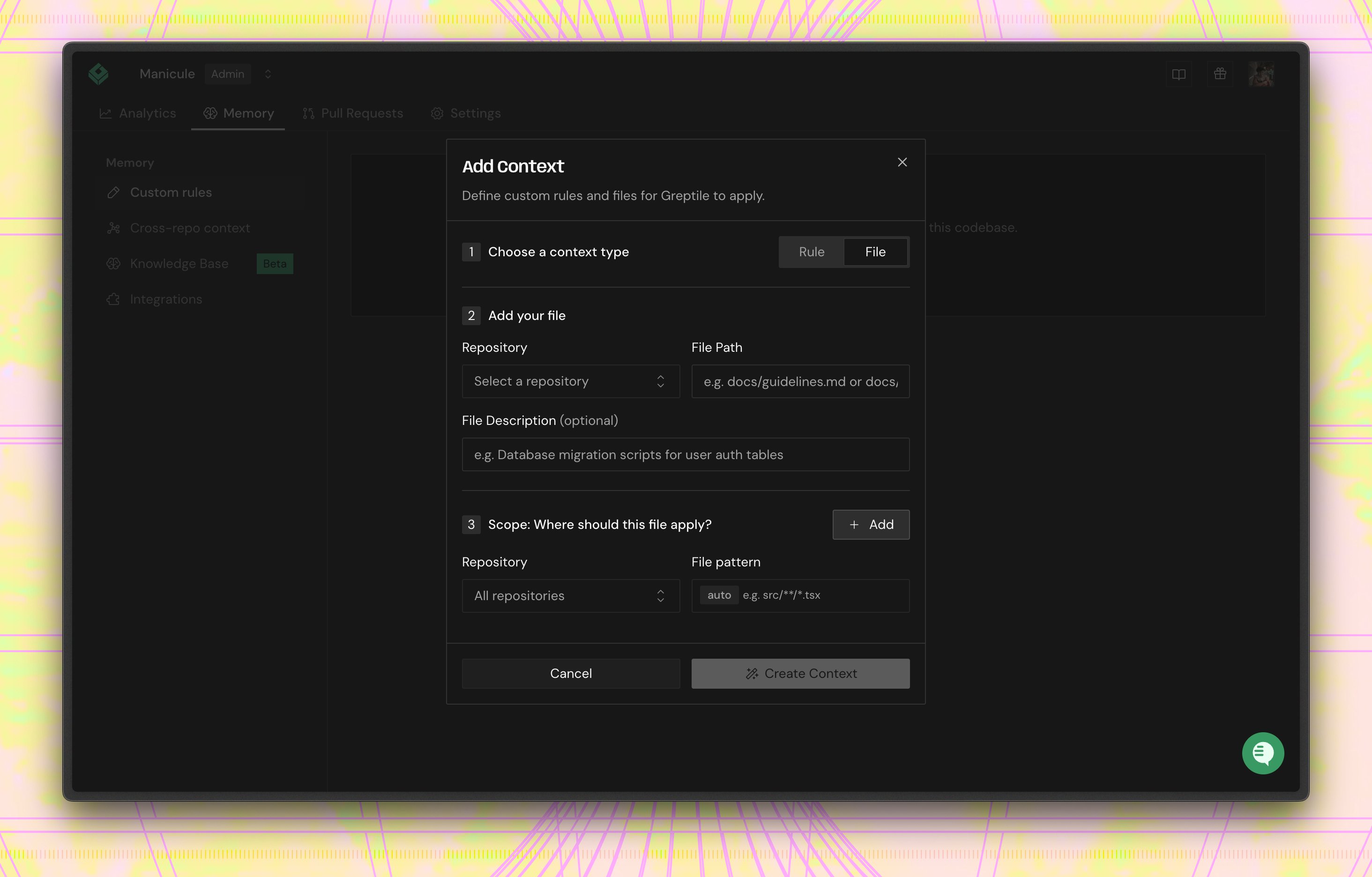
5
Test
- Create a test PR with intentional violations
- Verify Greptile catches them within 2-3 minutes
- Check “Last Applied” timestamp updates
Method 2: .greptile/ Folder (Recommended)
The.greptile/ folder gives you version-controlled rules with per-directory overrides — ideal for monorepos and teams that want rules reviewed in PRs.
You have two options for defining rules: structured JSON rules in config.json, or free-form markdown in rules.md. Use both in the same folder if you want.
Structured Rules (config.json)
Each rule has arule string, plus optional scope, severity, and id fields:
.greptile/config.json
id field matters if a child directory needs to disable the rule — see Disabling Inherited Rules.
Markdown Rules (rules.md)
For rules that benefit from prose, examples, or code blocks, userules.md:
.greptile/rules.md
.greptile/ folder.
Context Files (files.json)
Point the reviewer to existing files it should read — database schemas, API specs, architecture docs:.greptile/files.json
Paths are relative to the directory containing the
.greptile/ folder, not the repo root.Method 3: greptile.json
A single JSON file for repository-wide configuration. Good for simpler repos that don’t need per-directory overrides.Understanding customContext Types
ThecustomContext field in greptile.json accepts three arrays:
1. rules - Specific coding standards to enforce
files - Reference existing documentation
other - General context and background information
scope patterns using glob syntax to target specific files or directories. If no scope is specified, the context applies to all files.
Complete Configuration Examples
- Custom Rules
- Full Example
Verifying Rules Are Active
Many teams report rules “not working” - here’s how to verify:1
Check 'Last Applied' Status
Memory → Custom rules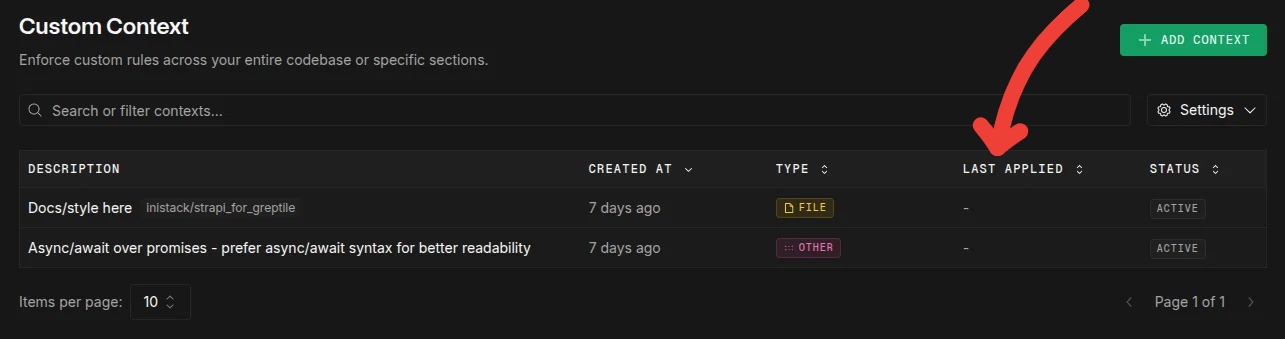
- Should update within 2-3 minutes of adding rule
- If stuck on “Never”, repository may not be indexed
- Force refresh: Create PR with
@greptileai review
2
Verify Repository Status
Settings → Add/Remove Repos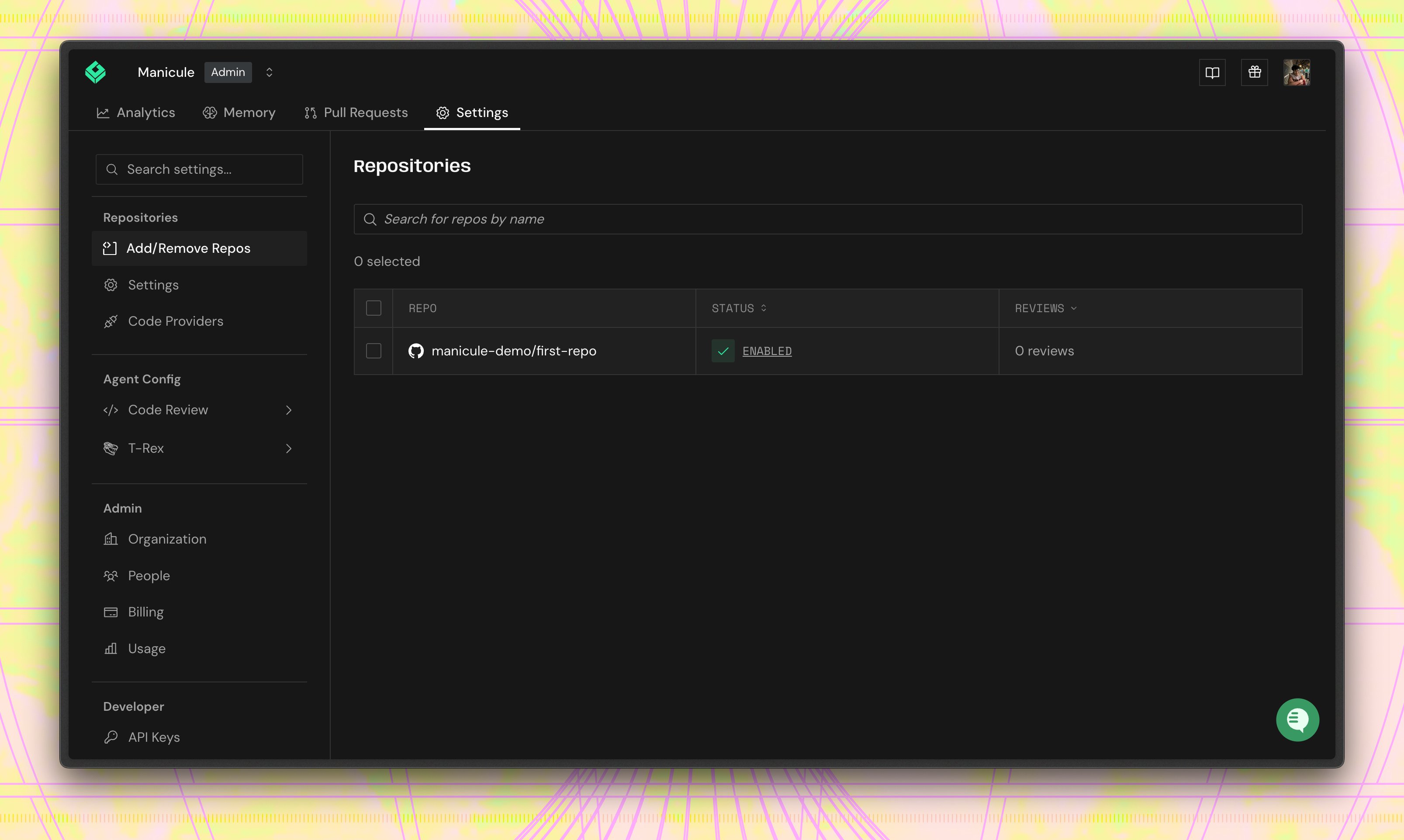
3
Test with Simple Rule
Add test rule with obvious violation:Create PR with
// TODO: test and verify detection.Suggested Rules (Auto-Learning)
Greptile automatically suggests rules based on your team’s patterns: How it works:- After ~10 PRs, Greptile detects consistent patterns
- You can approve, modify, or ignore suggestions
- Duplicates may appear (safe to ignore)
Suggested rules may duplicate existing ones. This is a known issue - just mark as ignored.
Troubleshooting Custom Rules
Rules not being applied
Rules not being applied
-
Check “Last Applied” timestamp (Memory → Custom rules)
- If “Never”: Repository not indexed or rule not triggered
- If old: Rule may be inactive
-
Verify repository is indexed (navigate to your team, then Repositories)
- Status must be “Indexed” not “Indexing” or “Failed”
-
For
.greptile/orgreptile.jsonrules:- Validate JSON syntax
- Rules won’t show in dashboard (this is expected)
- Takes effect on next PR only
-
Force trigger: Comment
@greptileai review this
Dashboard rules not syncing with .greptile/ or greptile.json
Dashboard rules not syncing with .greptile/ or greptile.json
This is expected behavior:
- Dashboard and repo-level configs (
.greptile/orgreptile.json) are separate systems - Repo-level rules apply during review but don’t show in dashboard
- Dashboard rules don’t generate config files
- You can use both. Settings from repo config override the dashboard. Rules from both apply.
Pattern syntax errors
Pattern syntax errors
❌ Wrong - comma-separated string:✅ Correct - array of patterns:
ignorePatterns only affects reviews, NOT indexing. Files will still be indexed.Rules not specific enough
Rules not specific enough
Bad: “Follow best practices”Good: “Variable names must be camelCase, min 3 characters, no Hungarian notation”Include examples in your rule for best results:
What’s Next?
- .greptile/ Configuration → - Cascading config with per-directory overrides
- .greptile/ File Reference → - Complete schema for config.json, rules.md, files.json
- Cross Repo Context → - Reference related codebases
- greptile.json Reference → - Legacy format configuration options