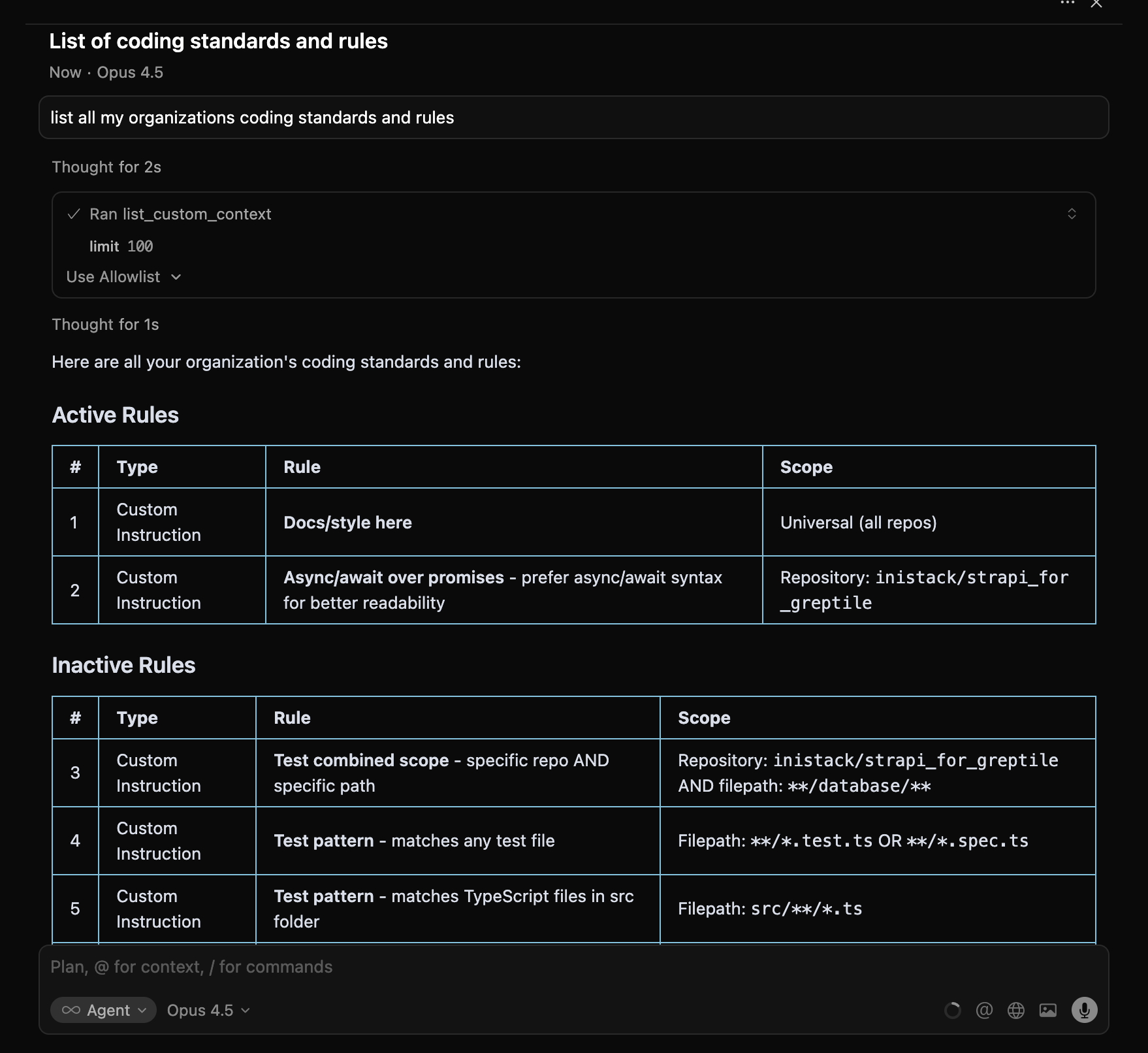
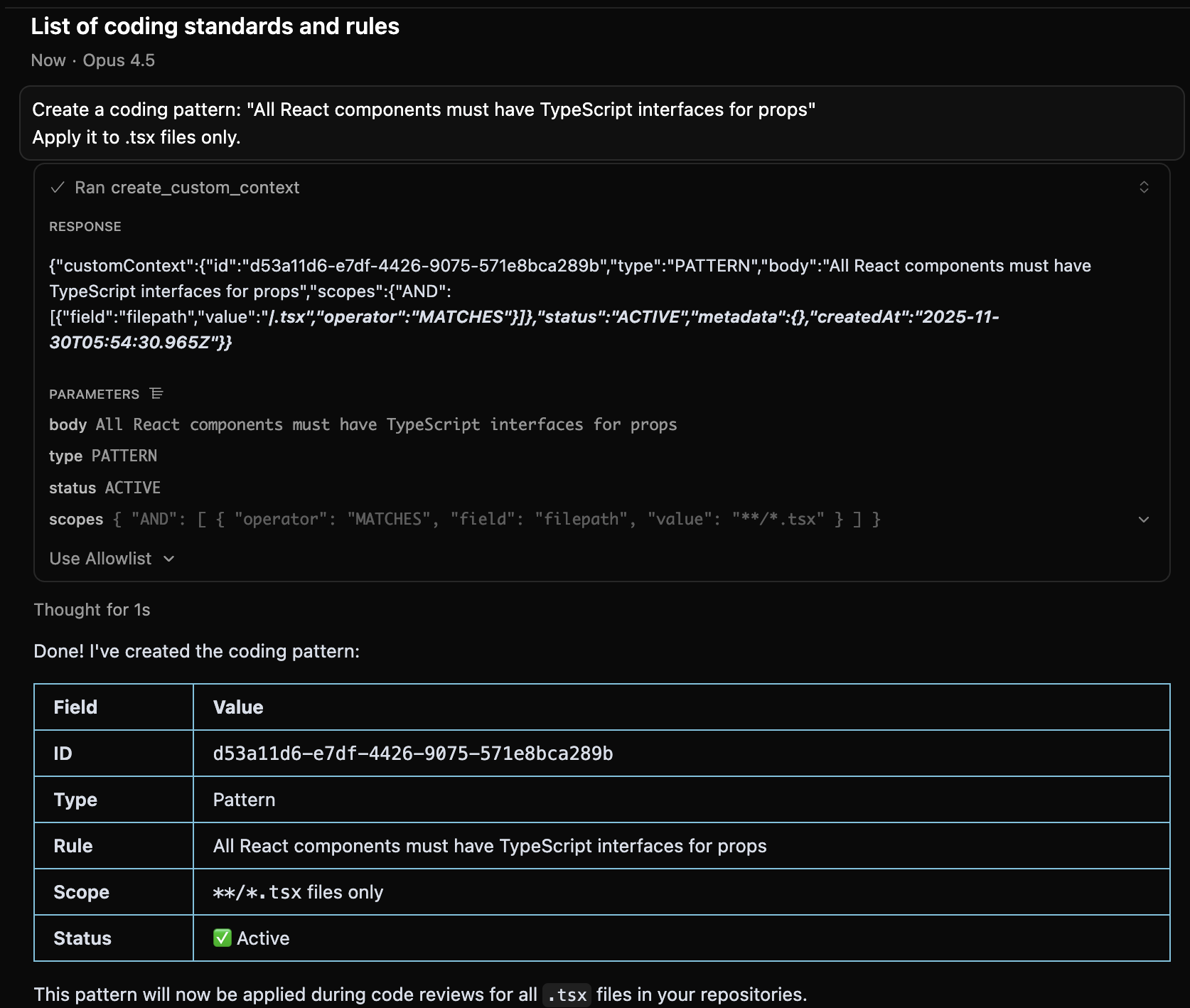
Custom context refers to your team’s coding standards that Greptile checks during reviews. Rules like “use async/await instead of promises” or “API endpoints must validate input.” When code doesn’t follow a pattern, Greptile comments on the PR. With MCP, you can view, search, and create patterns from your IDE.

View Your Patterns

What coding patterns does my organization have?
Tool used: list_custom_context
List org coding standards with mcp

Search Patterns

Search our coding patterns for error handling
Tool used: search_custom_context

Get Pattern Details

Show details for pattern 9c29e7ed-2d3f-45bd-846d-a61a59f10dd9
Tool used: get_custom_context Returns the full pattern including linkedComments—PRs where this pattern triggered feedback.

Create a Pattern

Create a coding pattern: "All React components must have TypeScript interfaces for props"
Apply it to .tsx files only.
Tool used: create_custom_context
Create custom context using the MCP

Scope Examples

You SayPattern Applies To
”Apply everywhere”All files in all repos
”Apply to TypeScript files”**/*.ts
”Apply to the api folder”**/api/**
”Apply to owner/repo only”That specific repository

Disable a Pattern

There’s no delete. Set status to inactive:
Disable the pattern about console.log statements

Workflow: Turn Recurring Feedback Into a Pattern

When you notice Greptile making the same comment repeatedly:
1

Identify the pattern

Search Greptile comments for "error handling"
Find comments that keep appearing across PRs.
2

Create the custom context

Create a pattern: "All catch blocks must log the error before re-throwing"
Apply to all TypeScript files.
3

Verify it's active

List my custom contexts and confirm the new pattern is ACTIVE

Field Reference

FieldDescription
bodyThe rule text
typeCUSTOM_INSTRUCTION (explicit rule) or PATTERN (code pattern)
statusACTIVE, INACTIVE, or SUGGESTED
scopesWhere it applies (see tools reference for format)
commentsCountTimes this pattern triggered a comment
linkedCommentsPRs where this pattern was applied

Next Steps