Connect Google Drive to give Greptile access to your documentation, PRDs, and specs during code reviews.

What You Get

  • PRDs and specifications stored in Google Docs
  • Architecture diagrams and technical documentation
  • Meeting notes and decision records
  • Shared spreadsheets with requirements or configurations

Setup
1

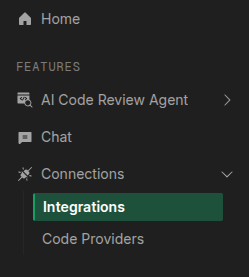
Go to Integrations

Click Integrations in the left sidebar of your Greptile dashboard.
Integrations menu
2

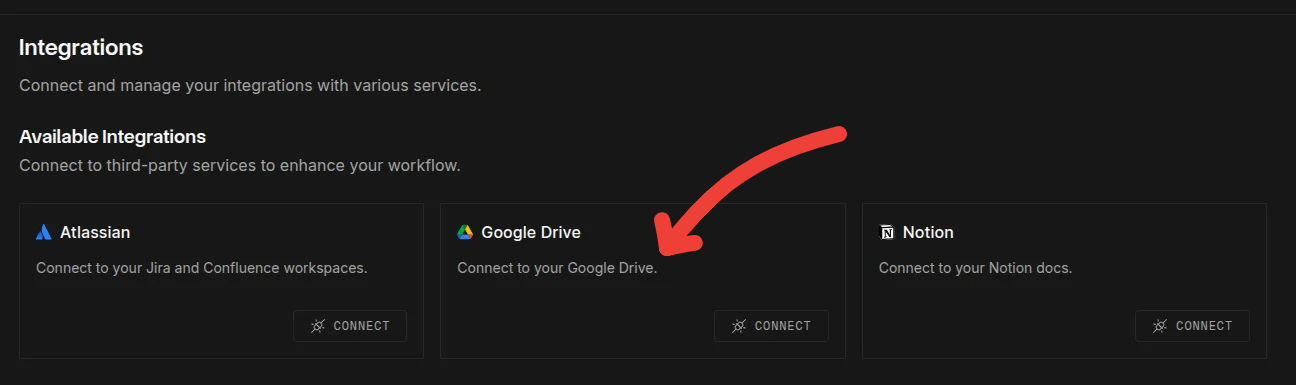
Connect Google Drive

Click Connect on the Google Drive card.
Connect Google Drive
3

Authorize Access

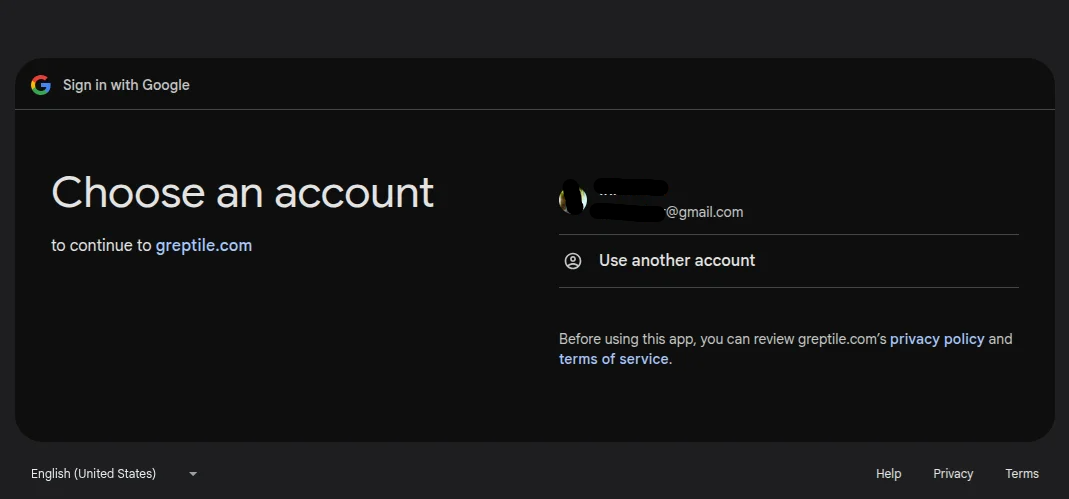
  1. Choose a Google account to connect.
Select Google account
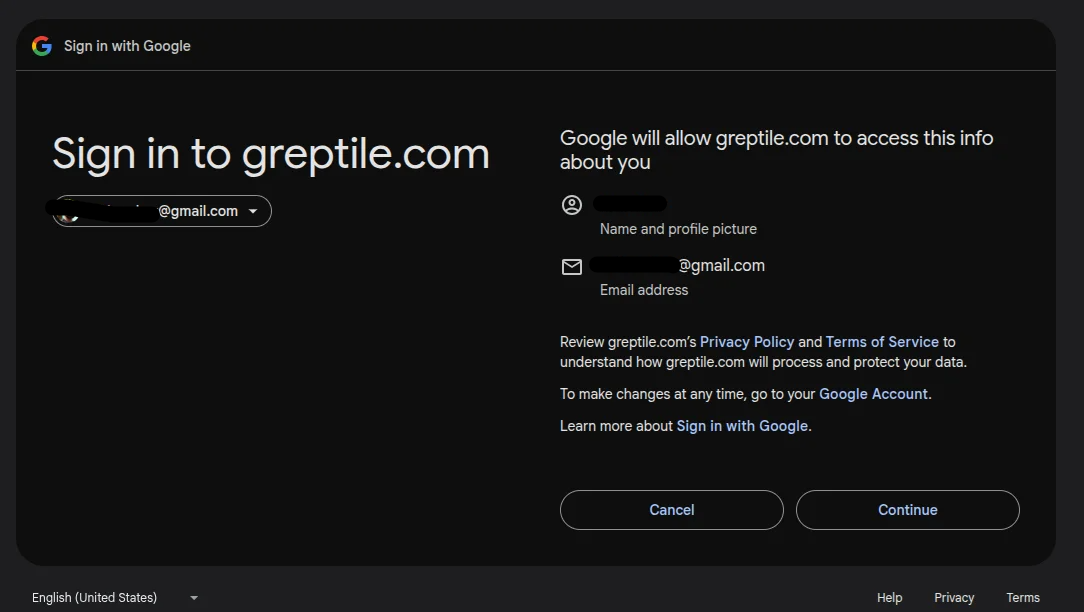
  1. Click Continue to proceed.
Continue authorization
  1. Select the checkbox to allow Greptile access to your Drive files.
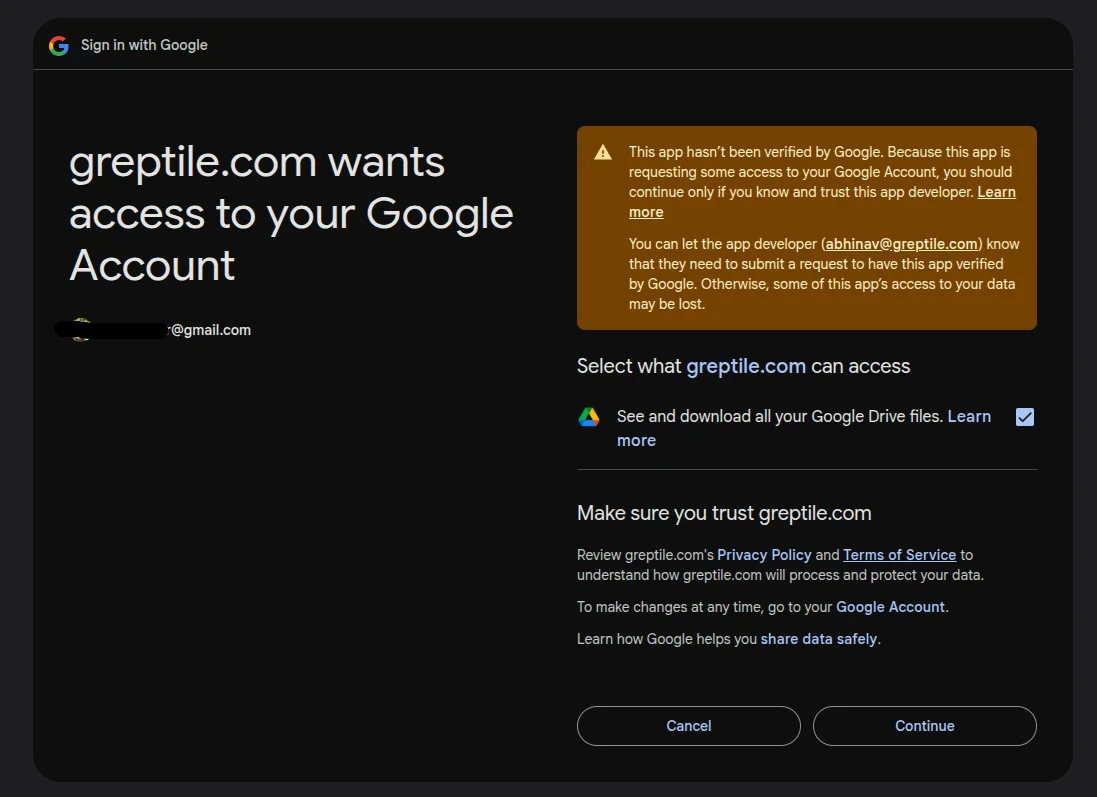
Grant permissions
4

Done

Google Drive appears as a connected data source in your dashboard.