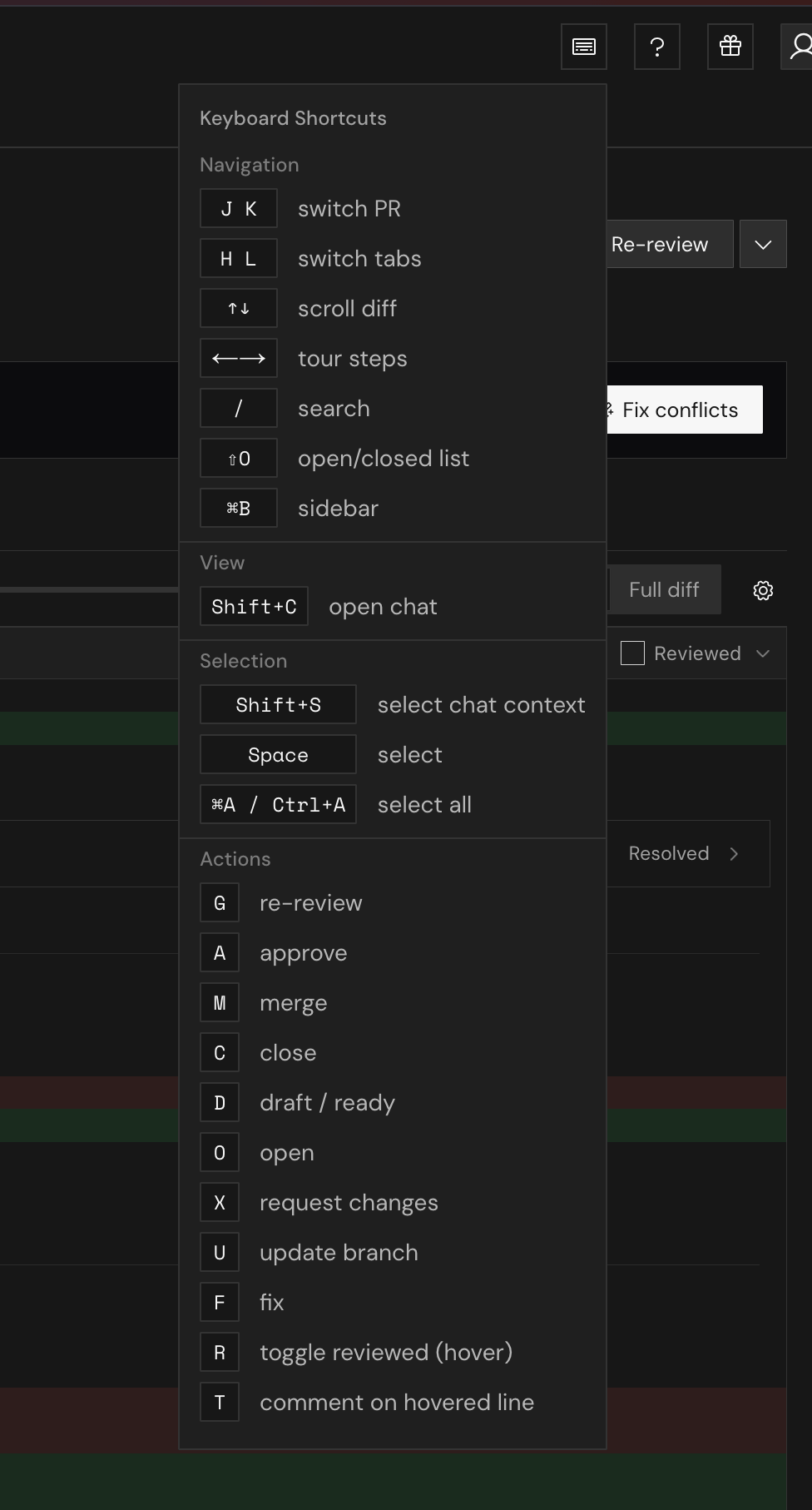
Choose a review view
Open the Code tab. When Tour is available, switch between Tour and Full diff above the code view. If there is no Tour, use Full diff.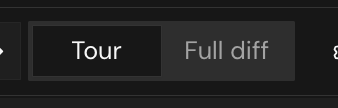
Tour
Use Tour to understand the changes step by step. Each step groups related changes and explains the code beside it. Press Left or Right to move between steps.Full diff
Use Full diff to inspect a specific file or review the changes in file order. Choose a file in the tree to view its diff.Chat with PR
Click Chat with PR in the pull request header, or press Shift+C. Type a question about the PR in the chat box.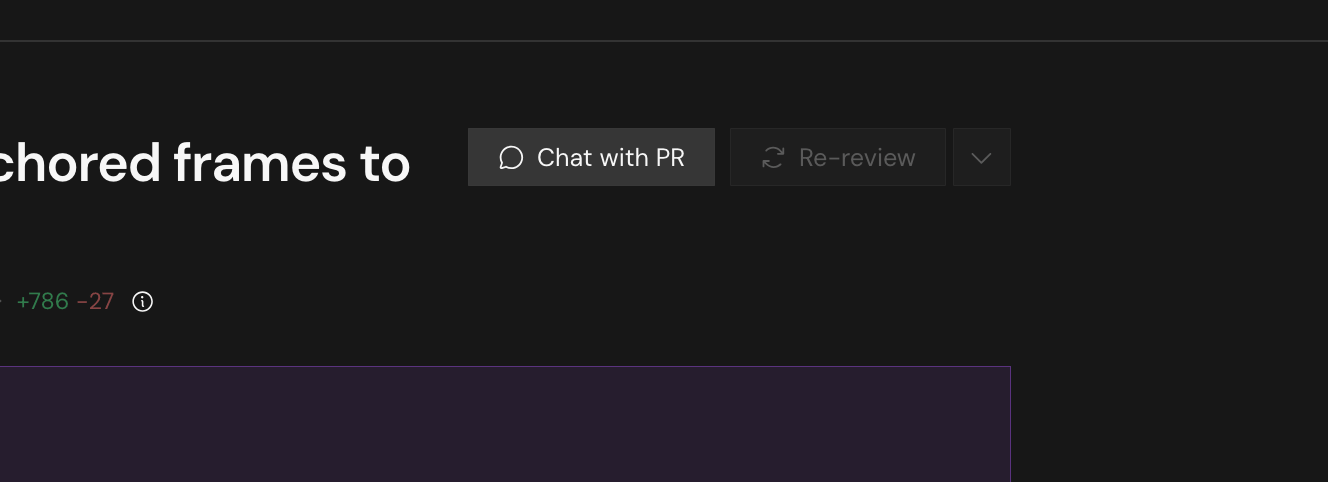
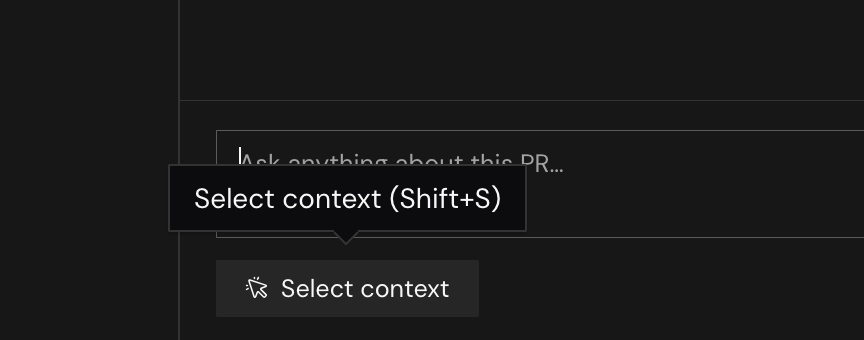
Choose context for your question
Give chat the code or explanation you want to discuss:- Click Select context in the chat box. To use Shift+S, move focus out of the question box first.
- Click a review explanation or file header to add it. To select code, drag across the lines. A blue outline marks your selections.
- Type your question and send it.
Questions to try
- What does this PR change?
- Explain the changes in this context.
- What edge cases should I test for this change?
Keyboard shortcuts
Click the keyboard icon in the top bar to open Keyboard Shortcuts. Shortcuts depend on the current view and focus. The chat shortcuts do not run while the question box is focused.