
Where to find them
Open Memory → TREX Flows. Each flow belongs to one repository; pick the repository at the top of the list, then select a flow. Its Instructions tab shows what TREX follows, and its History tab shows past runs.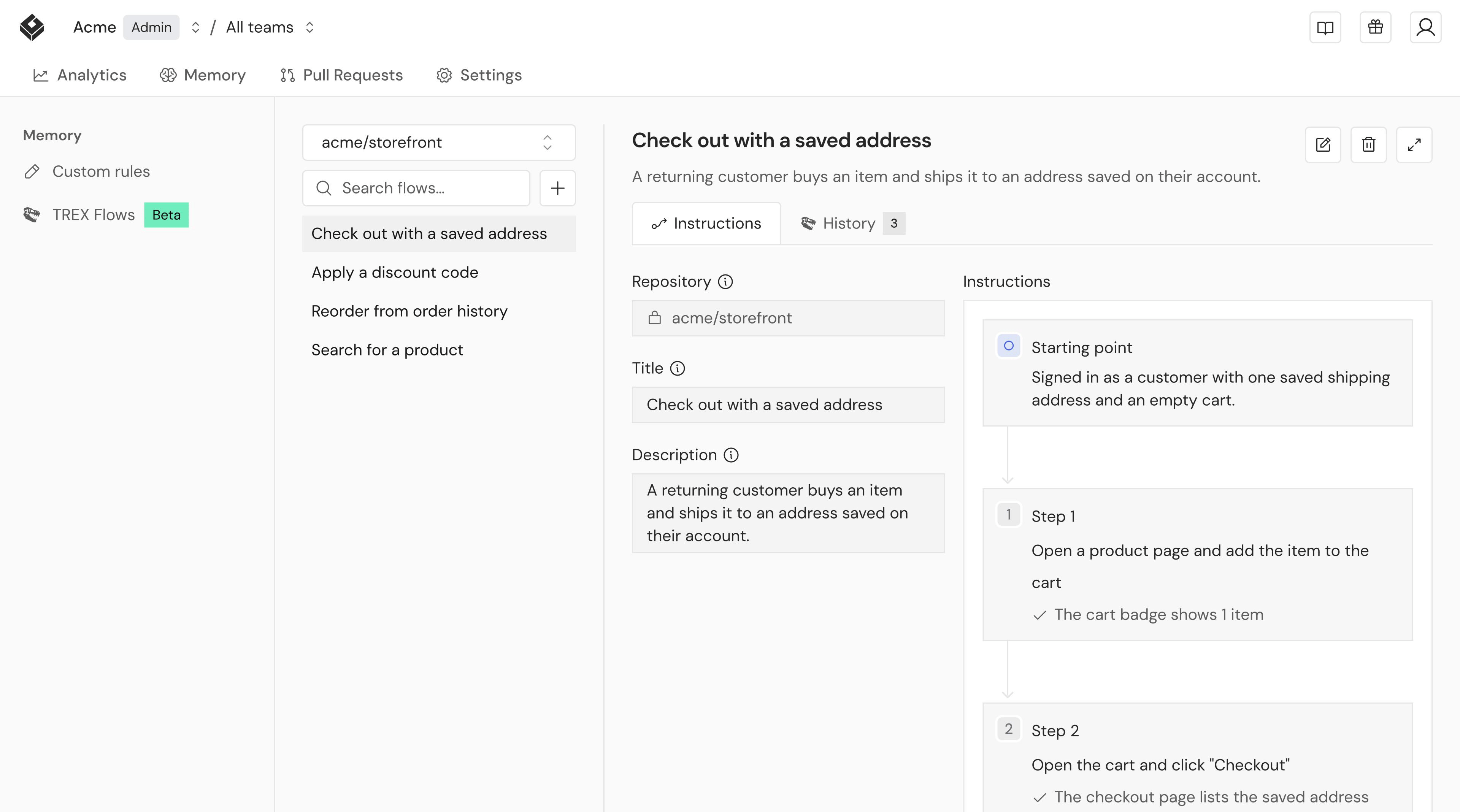
Write a flow
Click + (New flow) next to the search box and fill in:
Each step has an Action (what to do) and any number of Checks (what must be true afterwards). Each check fits on one line.
Example
- Title: Rename a project
- Goal: The new name is still shown after a reload.
- Starting point: Signed in with one project named “Alpha”.
- Steps:
- Open the project’s settings and change its name to “Beta”. Check: the header shows “Beta”.
- Reload the page. Check: the header still shows “Beta”.
How TREX uses a flow
- It runs when it’s relevant. On each pull request, TREX scores every flow, its own and yours, against the change. A flow that doesn’t match the change doesn’t run, so a clear description and goal matter.
- It runs as written. TREX follows your steps and checks exactly. It only works out how to reach the starting point.
- It reports back. Tested custom flows link to their page from the TREX comment. If TREX can’t reach the starting point, or a check looks wrong, the flow is listed under Incomplete custom user flows with an Edit flow link.
Who can change flows
- Anyone except viewers can create a flow.
- Only the flow’s author, or someone who can manage TREX settings, can edit or delete it.
- Creating, editing, and deleting flows is recorded in the audit log.