
Set up a repository
A new repository opens on Set up environment, with three ways in: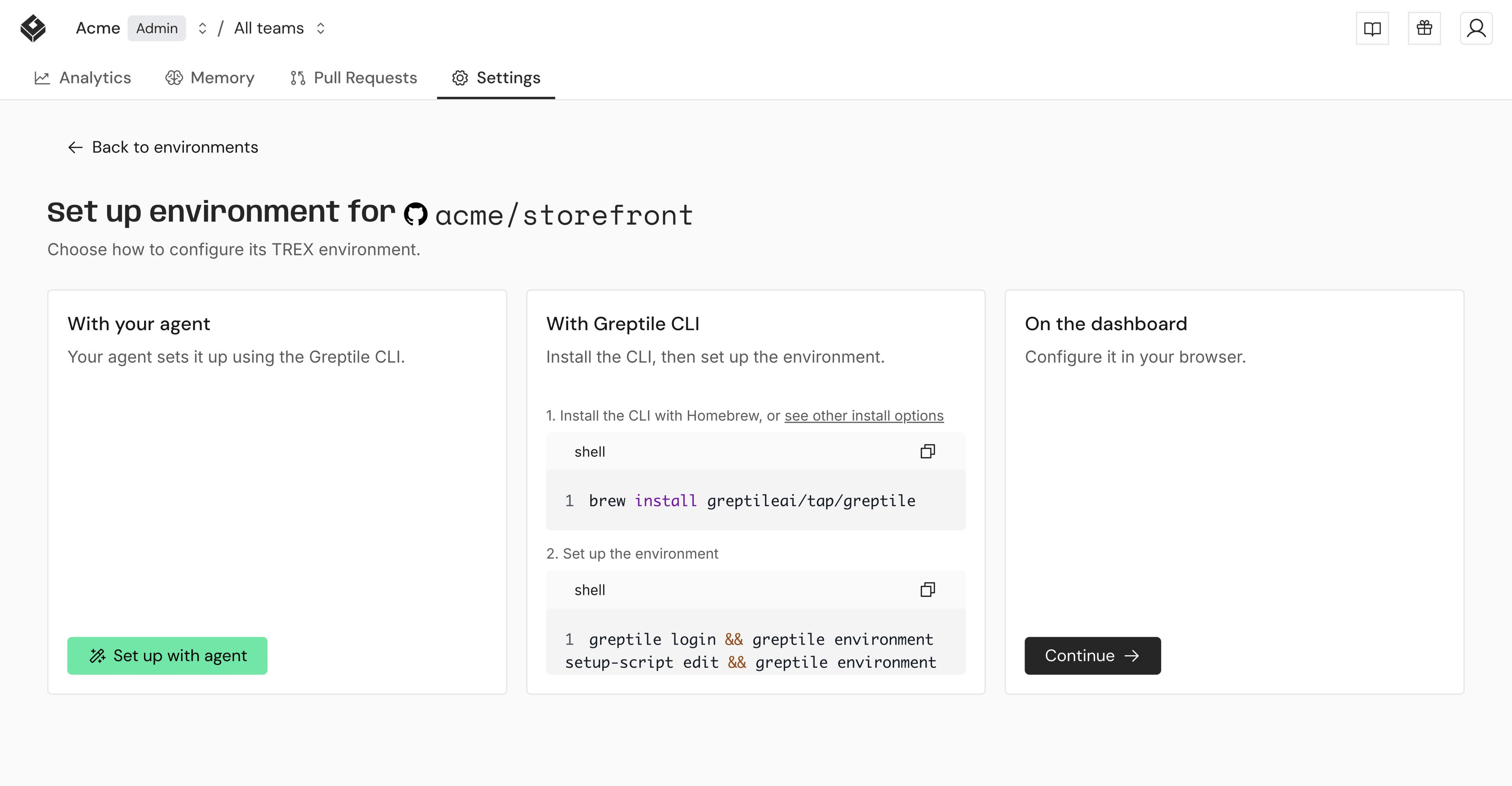
- With your agent: click Set up with agent and pick your coding agent. It opens with a prompt that configures the environment through the Greptile CLI from your checkout.
- With Greptile CLI: see Configure from the CLI.
- On the dashboard: click Continue. A guided setup walks you through the setup script, variables, and network access, then Save & build.
Repository page
Each environment has three tabs: Overview, Build Settings, and Review Settings. To have an agent fill in these settings from your repository, open the ⋯ menu and click Configure with agent.Overview
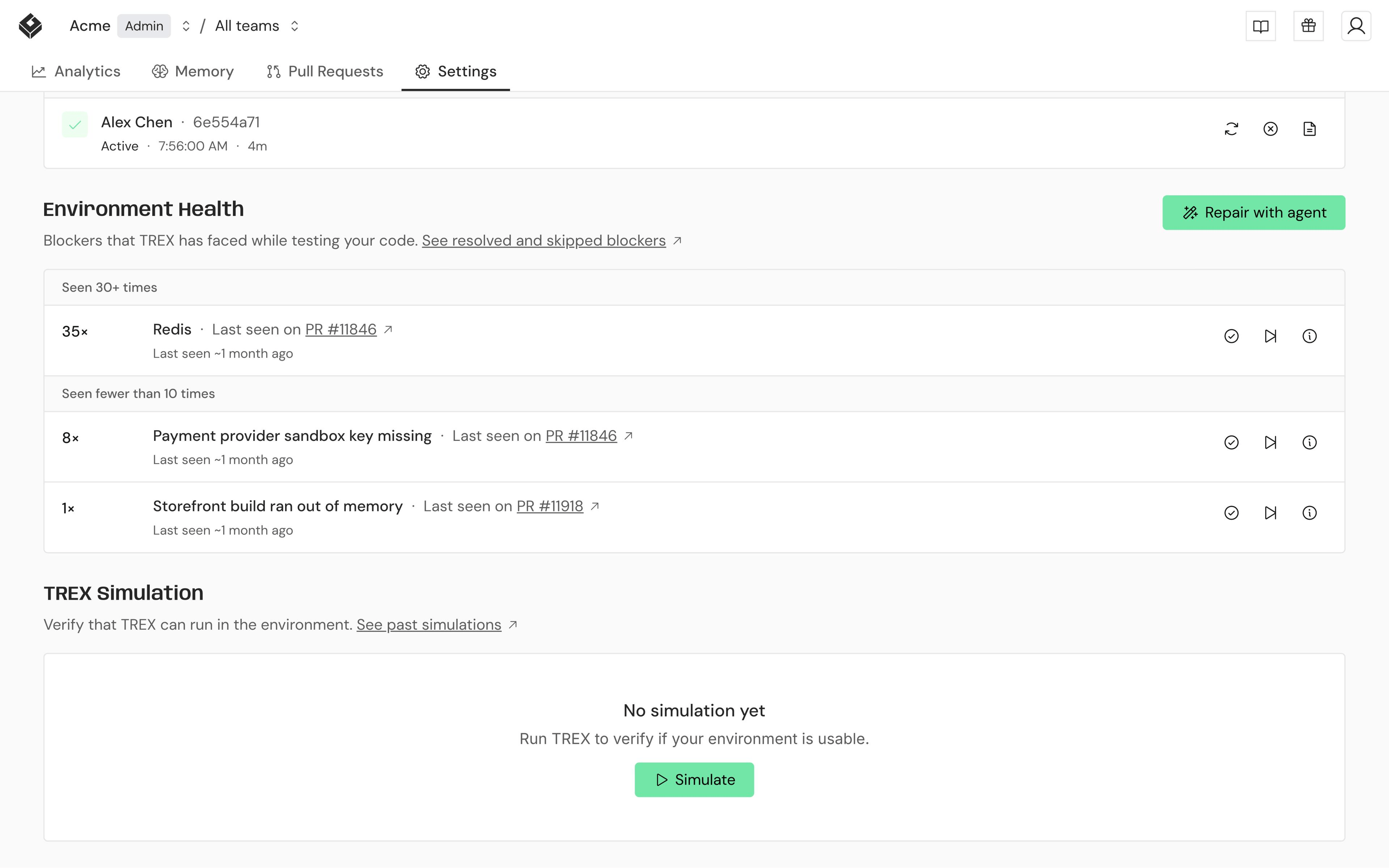
- Build History: every attempt to build the environment.
- Environment Health: blockers TREX hit while testing pull requests, such as a service that didn’t start or a missing login. Resolve or skip each one, or click Repair with agent to have an agent fix the setup.
- TREX Simulation: see Test the environment.
Build Settings
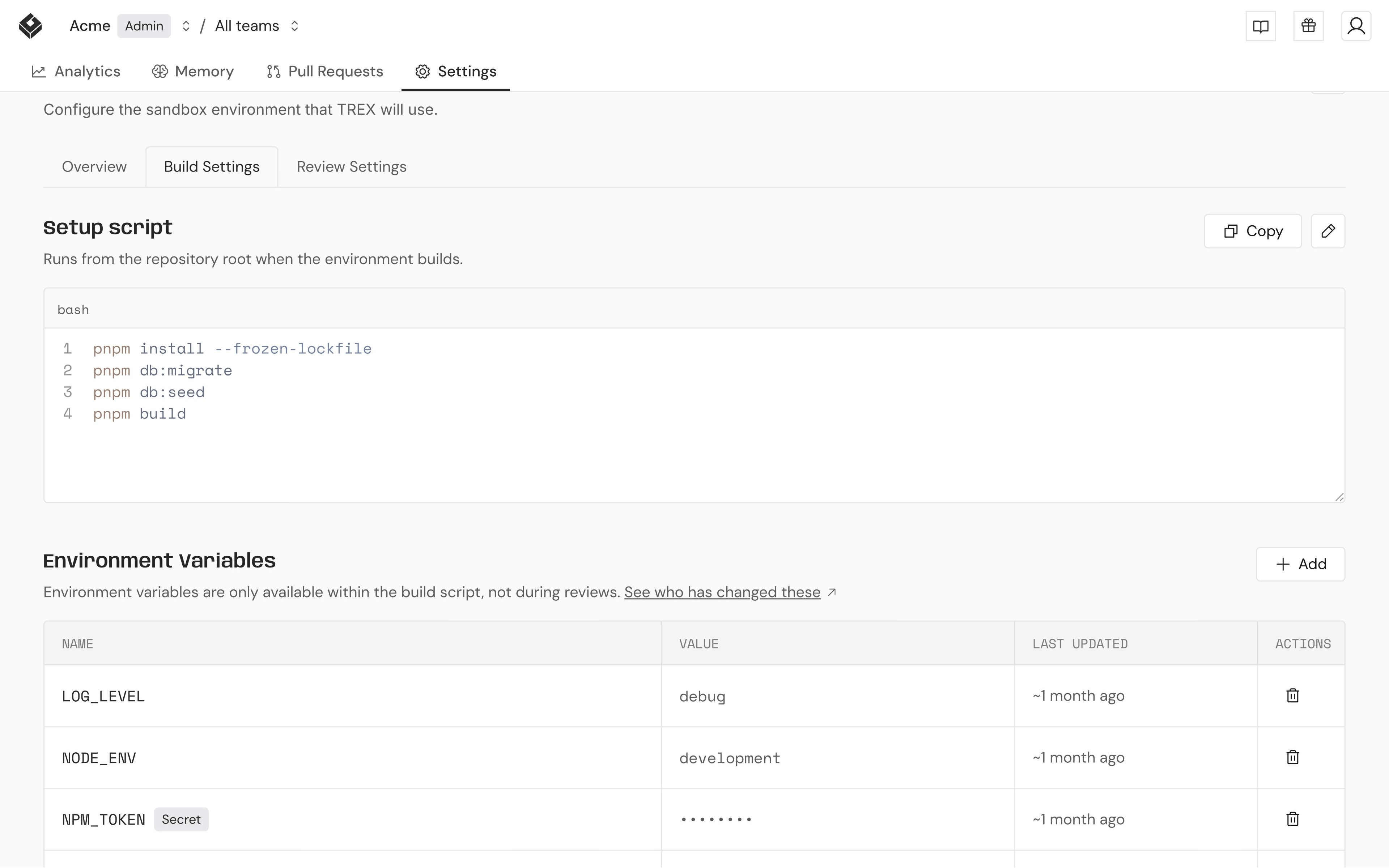
- Setup script: runs from the repository root when the environment builds. Install dependencies, run migrations, seed data. Up to 100,000 characters.
- Environment Variables: available to the setup script only, not while TREX tests. Use them for build-time credentials such as a private registry token. Mark a variable Secret to hide its value. Up to 100 variables. Changes are recorded in the audit log.
Review Settings
Setup instructions tell TREX how to start and use the app: which command starts it, which port to open, how to sign in. Write them like notes for a new teammate. Up to 32,000 characters. TREX reads this text, so don’t put secrets in it.Network policy
Build Settings and Review Settings each have a Network policy section, so the build and the test can have different rules. Turn Allow internet access off to block all outbound traffic except your repository and Greptile’s own services. With it on, Allowed domains offers:- All: any domain. This is the default.
- Trusted: exactly these package registries:
registry.npmjs.orgpypi.orgfiles.pythonhosted.orgdeb.debian.orgsecurity.debian.org
- Custom: the domains you enter (1 to 100), plus
registry.npmjs.org, which Greptile needs to install its own tools. Add other registries yourself.*.example.commatches subdomains but notexample.com. URLs, ports, and IP addresses aren’t accepted.
Test the environment
TREX Simulation, on the Overview tab, runs TREX against up to 5 pull requests using the current build, without posting to them. It reports what worked and what didn’t. Run it after changing the setup and before relying on TREX.- The environment needs a successful build that matches the saved settings.
- You get 5 simulations per configuration. Changing the build or the setup instructions resets the count.
- Simulation supports GitHub and GitLab repositories.
Configure from the CLI
Install Greptile CLI 3.7.0 or later (greptile update upgrades it) and run greptile login from your repository checkout. You need admin rights on the repository. Set VISUAL or EDITOR before using the edit commands.
env-var set prompts for the value. Don’t put secret values in command arguments.
Other commands: show, log, blockers, invalidate, and delete. Add --json to any command for machine-readable output.